A second monitor usually joins the desk with good intentions, then spends months parked at a stiff angle showing a chat window nobody reads. The screens are rarely the problem. The layout is. A strong Multi-Monitor Gaming Setup gives every screen one clear job, puts the main display straight ahead, and keeps your neck, your desk surface and your cables out of the fight.
The 17 layouts below cover narrow desks, wide desks and shared rooms. Some are built for pure gaming, some carry a stream, and a few earn their place during the workday. Each one says what it needs and where it struggles, so you can pick the shape that fits your room.
Start with the layout closest to what is on your desk right now. Arms, angles and screen roles can all change later.
A Matched Pair of Screens, Side by Side
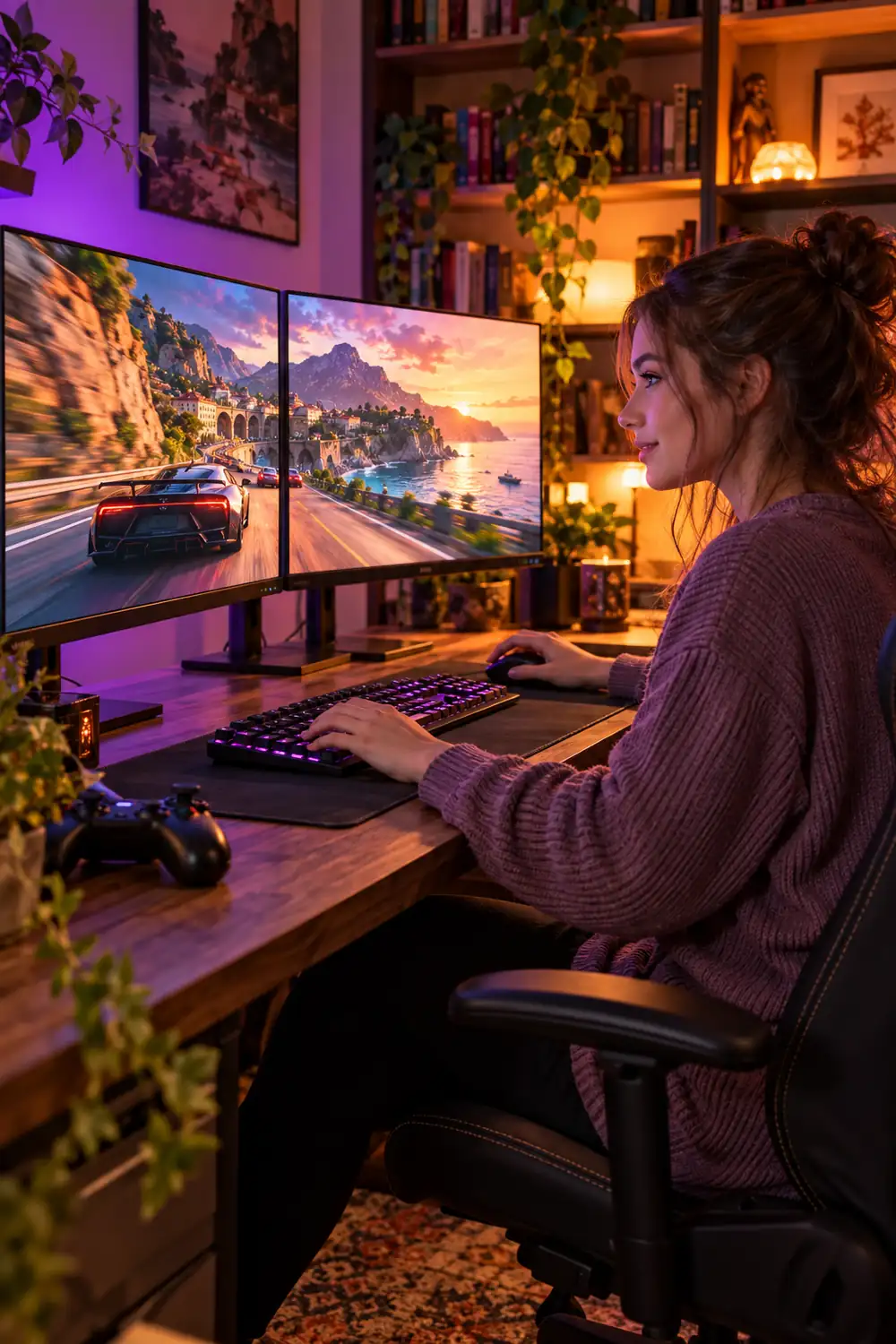
Two screens of the same size, sitting level, is the layout most people picture first.
Match the size and resolution so windows stay the same height when you drag them across the seam. Angle both screens inward slightly, like an open book, and shift the pair so your main game screen sits in front of your stronger eye. Strategy maps, racing dashboards and long documents all spread out well here, and this is the base shape behind most dual gaming setup ideas.
- Best for: sim racing, strategy games, split work
- Needs: two matched screens and a desk at least 120 cm wide
The Stacked Pair for Desks Short on Width
Short on desk width? Go up instead of out.
Mount one screen above the other and tilt the top one down toward your chair. The lower screen stays at eye level for the game or the document that matters, while the upper screen holds the things you glance at: chat, music, a call, a build guide. It suits deep but narrow desks well.
💡 Quick Tip
Stack the screen you glance at, not the one you stare at. Anything you read for more than a minute belongs at eye level, or your neck pays for it by Friday.
A Triple Screen Curve That Wraps the Game Around You
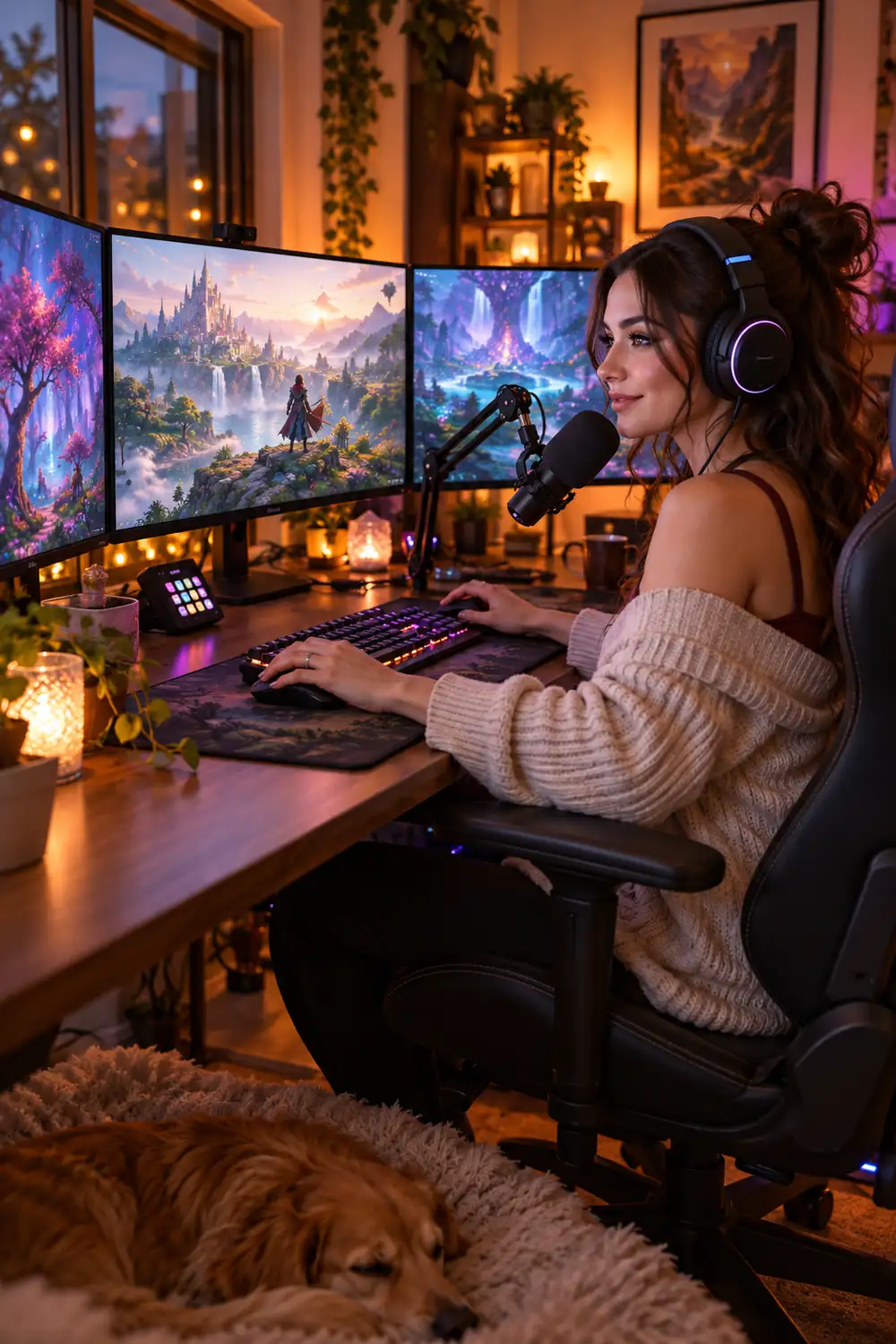
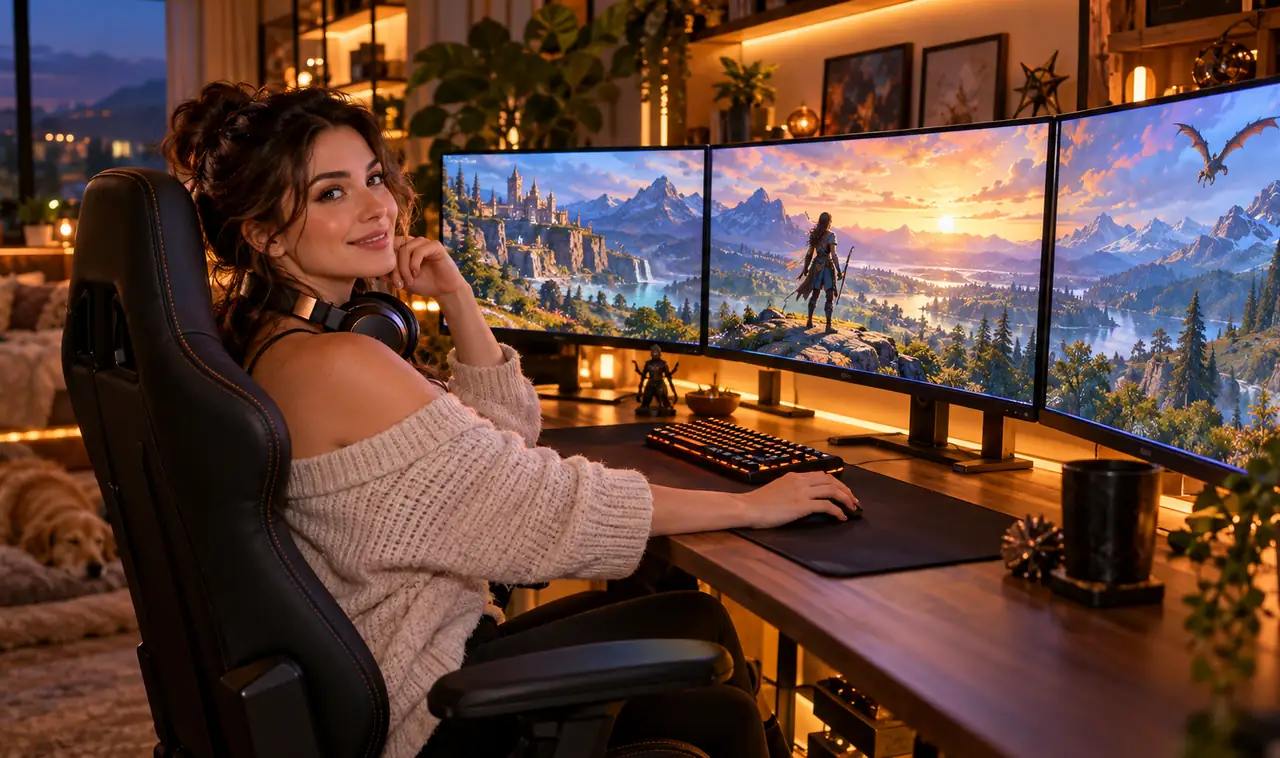
Three screens in a shallow curve is the layout racing and flight fans keep coming back to.
Set the center screen straight ahead and angle the two side screens inward by roughly 20 to 30 degrees, so the whole row follows the curve of your view. Side mirrors, cockpit dials and peripheral movement land where your eyes expect them. The trade off is honest: you need a wide desk, three matched heights, and a graphics card that can feed all three panels.
- Best for: racing sims, flight sims, open world games
- Watch out for: heat behind the center screen
An Ultrawide in the Middle With a Standard Screen Beside It
One very wide screen can do the heavy lifting while a normal screen handles the rest.
Park a 21:9 or 32:9 ultrawide in the center for the game, then stand a regular screen beside it for chat, notes and work files. Align the top edges rather than the centers, since the heights rarely match, and the row looks planned instead of accidental. This pairing suits players who work at the same desk, because the ultrawide splits into two tidy windows during the day.
It also saves money. One premium panel plus the monitor you already own beats two new screens.
Main Screen Dead Center, Second Screen Angled Like a Wing
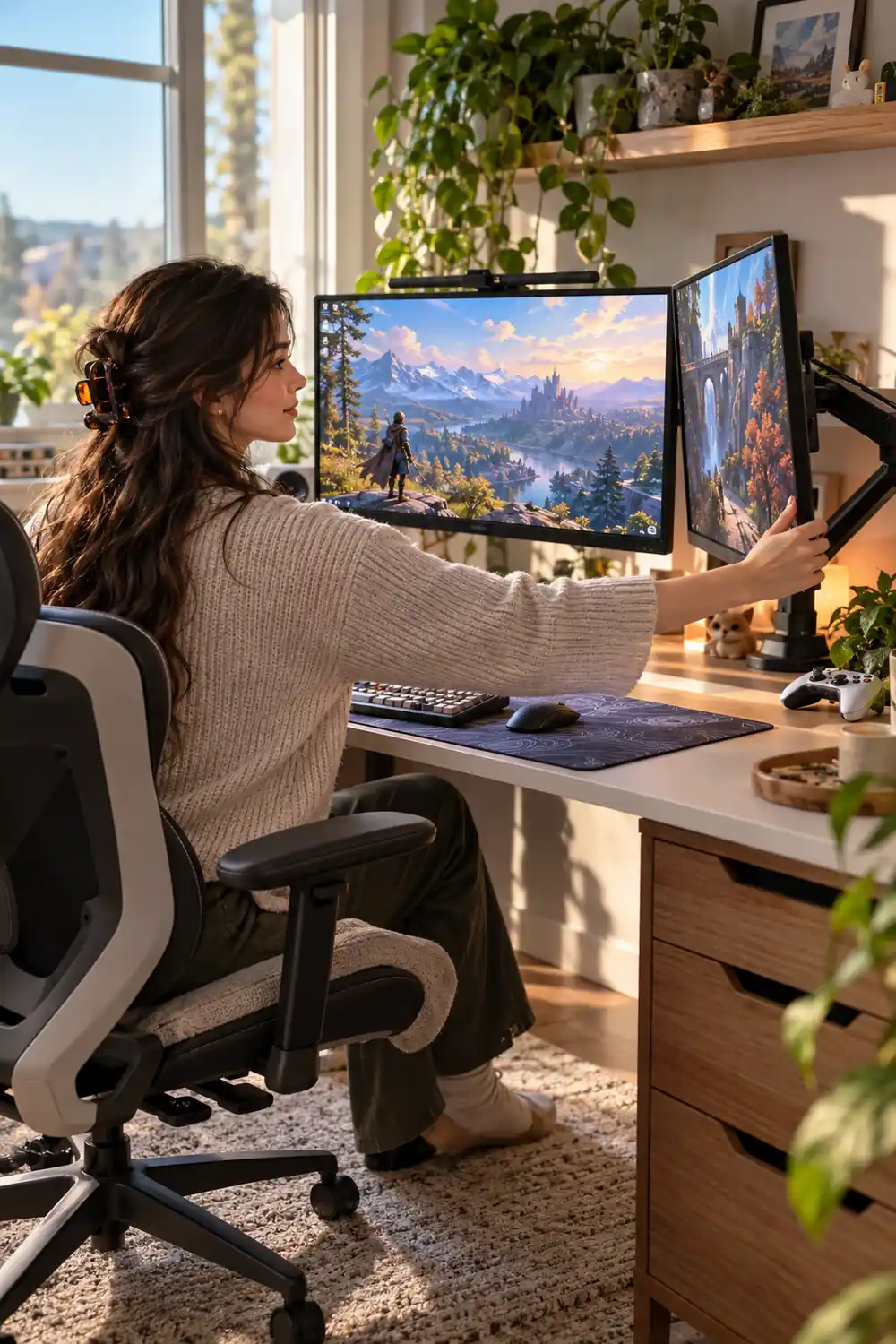
Posture decides this one.
Keep the main screen exactly in front of your chair, at eye level, and swing the second screen around at about 30 degrees on your stronger side, like a wing. Your head stays still for the game and turns only a little for chat or a map. Long sessions feel easier because your neck is not parked at an angle for hours.
- Best for: long sessions, streamers, anyone with a stiff neck
- Needs: one arm or stand that holds an angle well
A Portrait Side Screen for Chat, Playlists and Feeds
That spare screen you keep meaning to sell has a second life standing upright.
Rotate one monitor to portrait beside your main screen and it turns into a tall column built for scrolling content. Stream chat runs down it without stealing game space, and patch notes stop needing constant page jumps. The narrow width also means it fits on desks where a second landscape screen never would.
What a portrait screen holds best
Two Portrait Screens for Reading, Code and Stream Panels
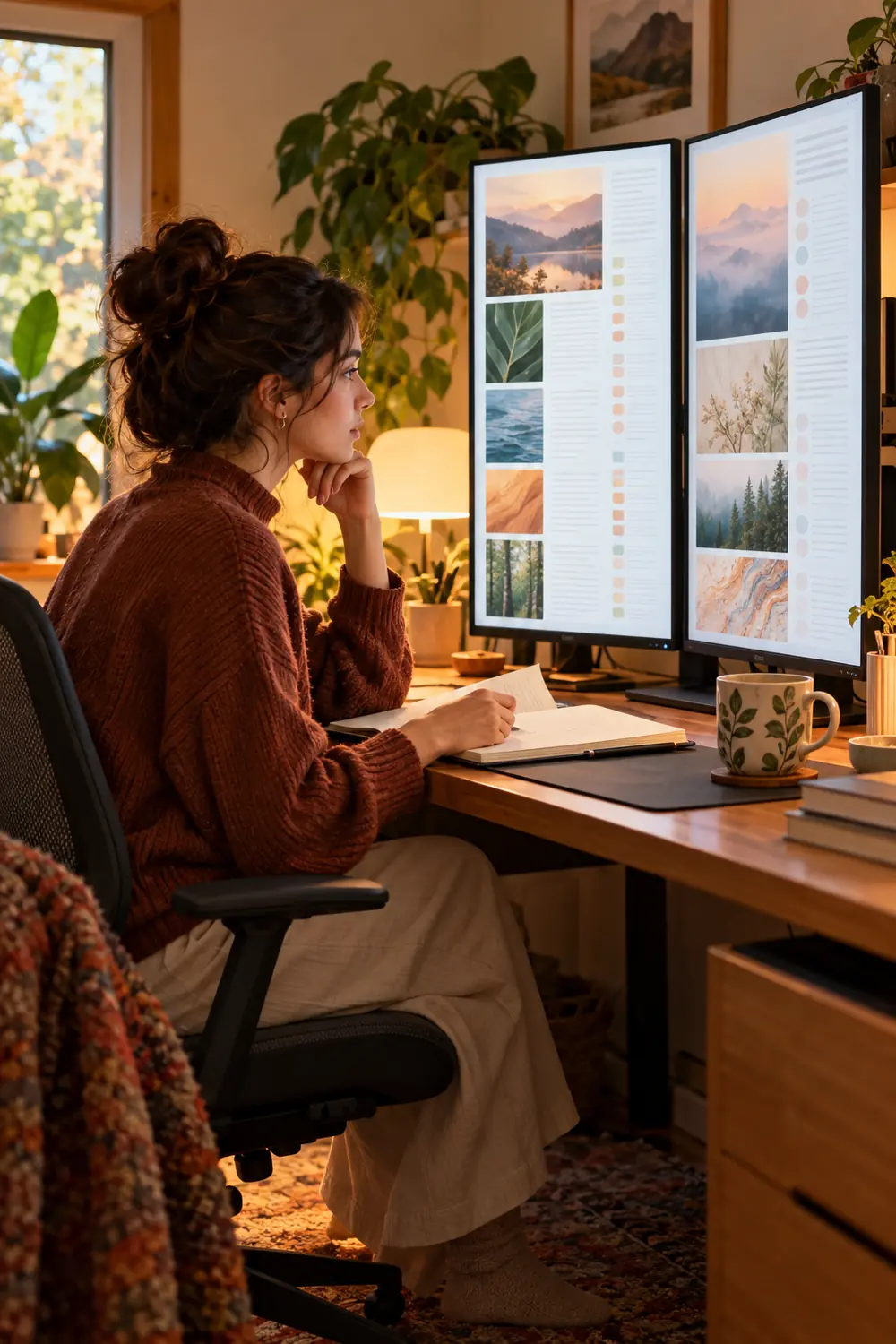
Some work reads downward, not across, and two tall screens side by side suit it well.
Stand both monitors in portrait and the pair becomes a reading wall: code on the left, documentation on the right, or stream panels stacked with a chat column. Writers, programmers and stream managers tend to settle here. As a work first layout, this pair is hard to beat for the price of two basic stands.
Keep the bezels tight together so the pair reads as one tall surface.
Your Laptop Raised as a Third Screen
Before buying a third monitor, check the laptop sitting closed on your shelf.
Put it on a stand or a stack of sturdy books so its screen lines up with your monitors, open it beside the main pair, and give it the lightest jobs: chat, notes, a stream preview. It is the cheapest way to test whether a third screen actually helps your routine. The honest limits are fan noise and heat, so keep the heavy apps on the desktop screens.
- Best for: testing a triple layout before spending money
- Watch out for: small text, so raise the scaling on the laptop screen
An L-Shaped Desk With One Side per Job
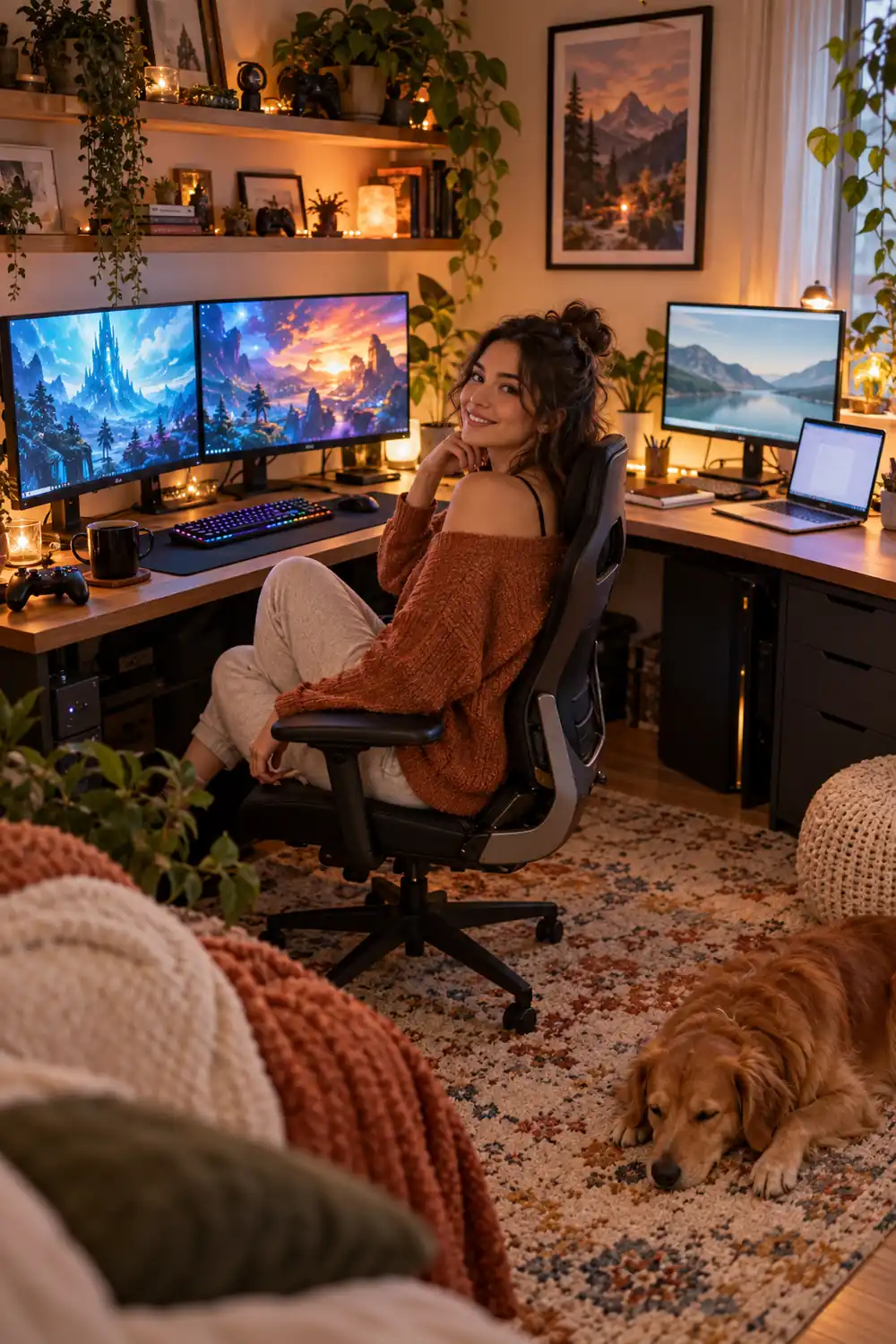
A corner desk already draws the boundary for you.
Give the long side to gaming, with your main pair mounted there, and give the short side to work: a single screen, a laptop dock, the notebook pile. A swivel of the chair moves you between the two. This is the layout people land on when one desk has to behave like a home office and gaming room in the same square metres.
Keep the tower on the floor between the two sides so both can reach it.
Screens Floating on Arms Above a Clear Desk
Monitor stands eat more desk than monitors do, and arms give that space back.
Clamp one arm per screen to the back edge of the desk and both displays float at eye level, pushed back far enough that the whole surface opens up. There is room for a full size keyboard, a notebook, a controller dock and the mug that usually ends up somewhere risky.
Two bulky stands eat the middle of the desk, cables spill forward, and the keyboard gets whatever space is left.
Screens float at eye level, the full desk surface is open, and there is a home for the notebook, the drink and the controller dock.
The Stadium Layout: Raised Center, Two Lower Sides
Think of stadium seating, where the middle sits highest and the sides step down.
Raise the center screen on a riser shelf or a taller arm, then let the two side screens sit lower at desk height. Your eyes rest on the raised game screen and drop slightly for chat or a map. The riser shelf underneath doubles as storage for the keyboard when you want the desk fully clear.
- Best for: one big center screen flanked by two smaller ones
- Watch out for: the center screen creeping too high, so keep its middle near eye level
A Small Chat Screen Tucked Under the Main Monitor
A small portable screen, the kind sold for travel, fits neatly in the gap most setups waste.
Slide a 14 or 15 inch portable monitor under your main display. It becomes a permanent home for stream chat, a music player or system stats. Keep its brightness low so it informs without pulling focus, and power it from the PC so it wakes and sleeps with the desk.
Streamers on a budget tend to keep this one long after bigger upgrades arrive.
Screens Mounted on the Wall, Desk Pushed Close
Mounting the screens on the wall is the boldest way to free a desk.
With both displays on wall brackets, the desk can be shallower, and nothing wobbles when the desk gets bumped mid game. The real cost is flexibility: moving a screen means new holes, and renters should get permission in writing before drilling anything.
| Wall mount | Desk arms |
|---|---|
| Desk space: the whole surface stays clear | Desk space: clear, apart from the clamp at the back edge |
| Adjusting: tilt only, position is fixed once drilled | Adjusting: swing, tilt and height whenever you like |
| Walls: holes to fill when you move out | Walls: untouched, kind to rented rooms |
A Swivel Arm That Turns the Main Screen Toward the Couch
One strong arm, properly rated, lets the main screen travel.
Mount the primary display on a long reach arm and it swings away from the desk toward a couch or bed for controller gaming and films, then swings back for mouse and keyboard work. The second screen stays fixed at the desk for everything else. Check the weight rating printed on the arm against your screen before you trust it, and leave slack in the cables so the swing never pulls a plug.
- Best for: small rooms where the desk shares space with a couch
- Watch out for: cheap arms sagging over time
The Streamer Split: Game on One Screen, Production on the Other
Streaming asks your screens to do two different jobs at once, so give each job its own display.
The main screen holds only the game and your camera preview. The second screen becomes mission control: chat, alerts, the streaming software, a browser for quick fixes. Nothing important overlaps the game, and a glance sideways tells you the stream is healthy. What sits behind you matters too, so borrow a few streaming background ideas and keep that second screen out of the camera frame.
Back to Back Layouts for Two People in One Room
Sharing a room does not have to mean sharing one wall of screens.
Push two desks together back to back, or split one long table down the middle, and each person gets their own pair of screens facing away from the other. Game sounds stop competing across the room, and nobody has to watch a partner’s screen flicker in the corner of their eye.
Give each desk its own power strip and cable path.
Agree on headphones for voice chat nights.
Running both setups from one small surge strip.
Blocking the walkway between the desks and the door.
The Mixed Duo: One Landscape Screen, One Portrait Screen
If the budget picks the layout, start here.
One landscape screen for the game and one portrait screen beside it covers the daily reality of most desks: play on the left, everything tall on the right. Chat, documents, feeds and playlists all suit the upright screen, and the pair costs less than any matched set on this list. The same two screens grow into the wing layout or the streamer split later.
Buy the portrait screen with a rotating stand included, and you skip your first upgrade argument.
More screens only help when each one has a job. Pick the layout that matches your desk, your games and your workday, give the main screen the center spot, and let the others earn their place around it. A settled Multi-Monitor Gaming Setup stops feeling like equipment and starts feeling like the room simply works. Save this list for the next time you rearrange the desk.